
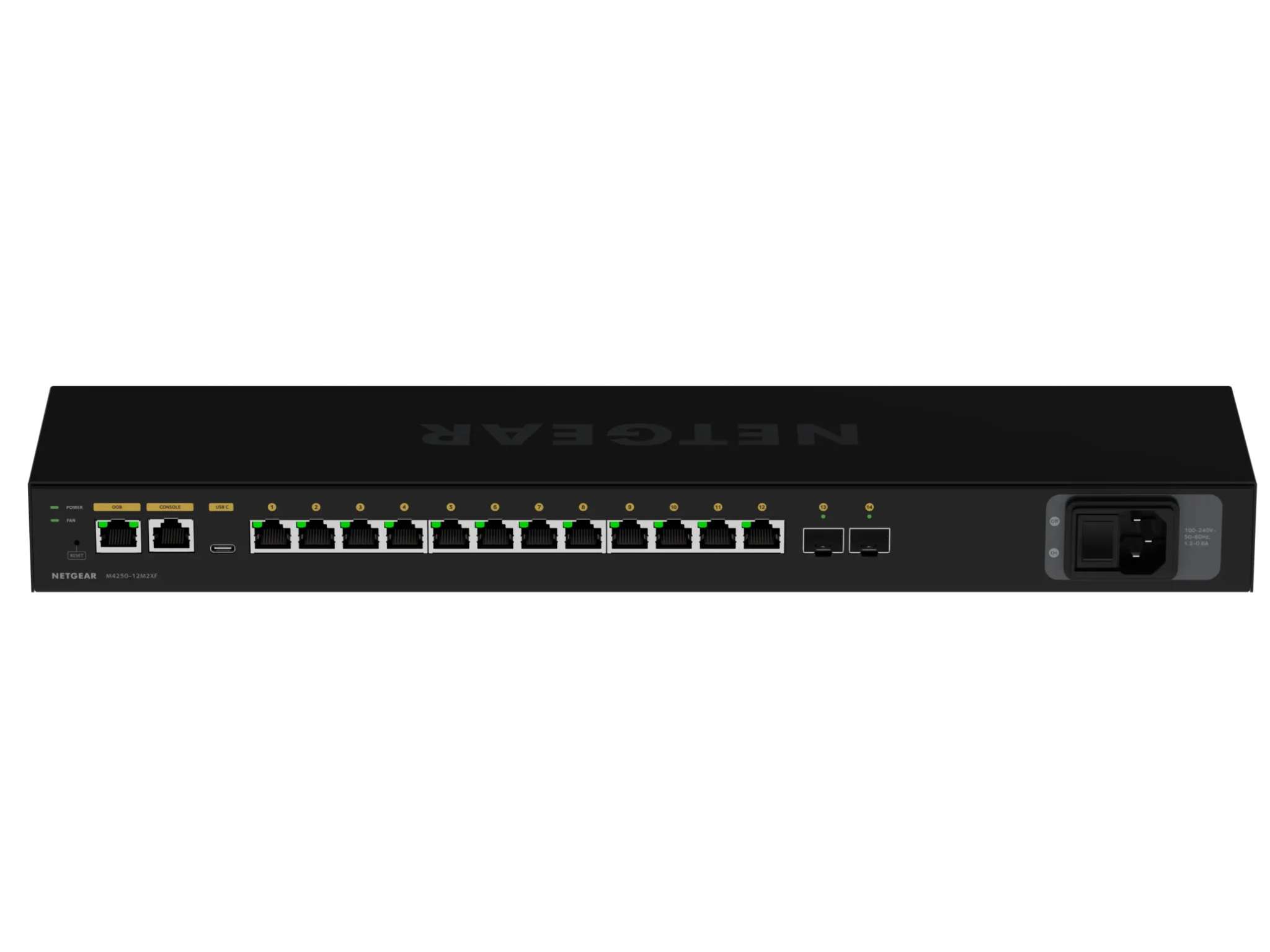

NETGEAR AV Line M4250 switches can be configured using multiple interfaces, each suited to different use cases:
- Main Web UI
- AV (Audio-Visual) UI
- Command Line Interface (CLI)
- NETGEAR Engage Platform
The AV UI is designed for rapid deployment using pre-defined profiles optimised for common AV applications. It also allows users to create and save custom profiles
Default Configuration
Out Of Band (OOB) Management Port
The OOB management port is located on the left-hand side of the switch and is configured as follows:
- DHCP enabled by default
- If no DHCP server is available, it defaults to 192.168.0.239/24
Data Ports
- All ports are assigned to VLAN 1 (management VLAN) after a factory reset
- If no DHCP server is present, the switch will self-assign the address 169.254.100.100/16
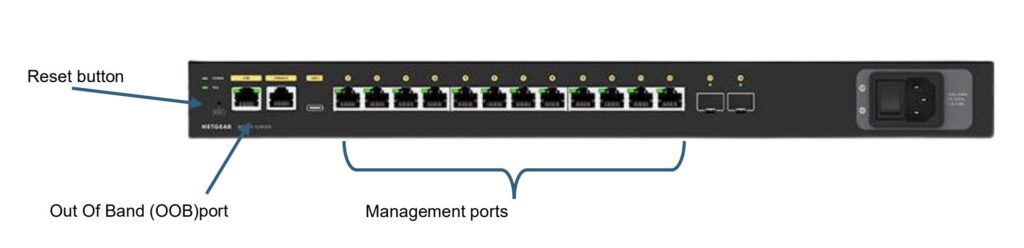
Note: Always verify which port you are connected to when attempting to access the switch, as IP addressing behaviour differs between OOB and data ports.
Accessing The Switch
Factory Reset Procedure
To return the switch to factory settings:
- Use a paperclip or similar tool to press and hold the Reset button
- Hold for approximately 15 seconds
- Release and allow the switch to reboot
- All port LEDs will illuminate briefly to confirm the reset
Logging into the Web Interface
- Connect a PC to the appropriate port
- Open a web browser
- Enter the IP address corresponding to the connected port
- the login page will be displayed
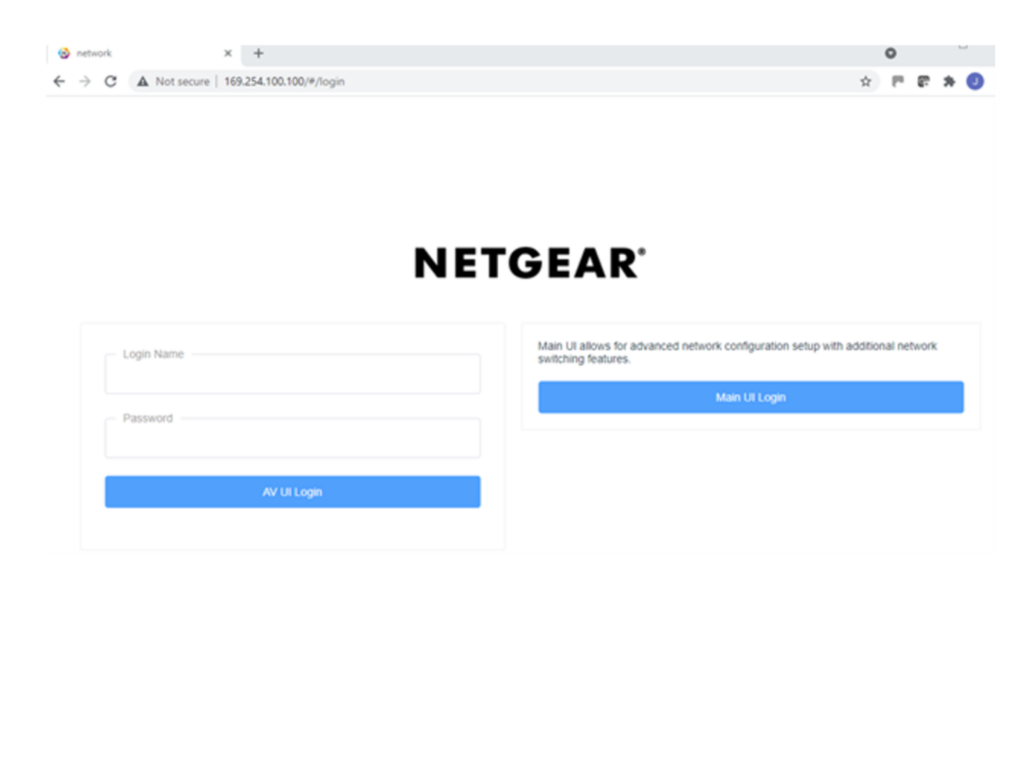
Default Login Credentials
- Username: admin
- Password: (leave blank)
Upon first login:
- You will be prompted to create a new password
The default login for Creative Technology switches is:
- Username: admin
- Password: Creat1ve
User Interfaces Overview
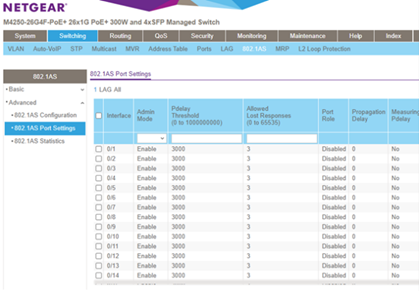
Main UI
Full access to advanced configuration and required for:
- PTP (Prescision Time Protocol)
- QOS (Quality of Service)
- Multicast configuration
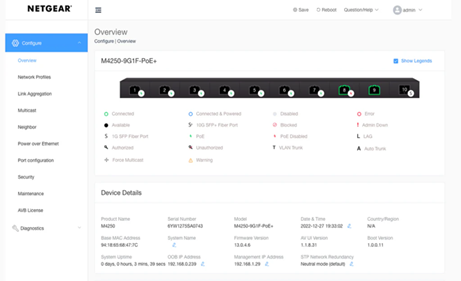
AV UI
Simplified interface designed for:
- Rapid AV deployment
- Template-based configuration
Note that this UI provides limited access to advanced networking features.
Working with the Netgear Engage platform
Overview
Used for centralised management and monitoring, and is enabled by default, but inactive unless configured.
Key Behaviour
- Changes made in the Main UI are not automatically synchronised
- AV UI does not provide controls to disable Engage.
- Factory reset removes Engage configuration.
Best Practices
- Choose a single configuration method (Main UI, AV UI, CLI or Engage) and use it consistently.
- Avoid switching between interfaces during configuration.
- Perform a factory reset before redeploying a switch to a new environment.
- Document IP addressing and VLAN assignments clearly.
Important: Configuration changes made in one interface may not synchronise with others, leading to inconsistent or unexpected behaviour.
Leave a Reply
You must be logged in to post a comment.