

ODIN will generate error messages if the licenced number of ports does not match the software configuration. To re-size the intercom, follow this procedure in AZ Edit.
Enable re-sizing options
Navigate to Options> Preferences and ensure the boxes are checked for:
- Allow reset config (“first birthday”)
- Allow intercom resizing in ONLINE mode
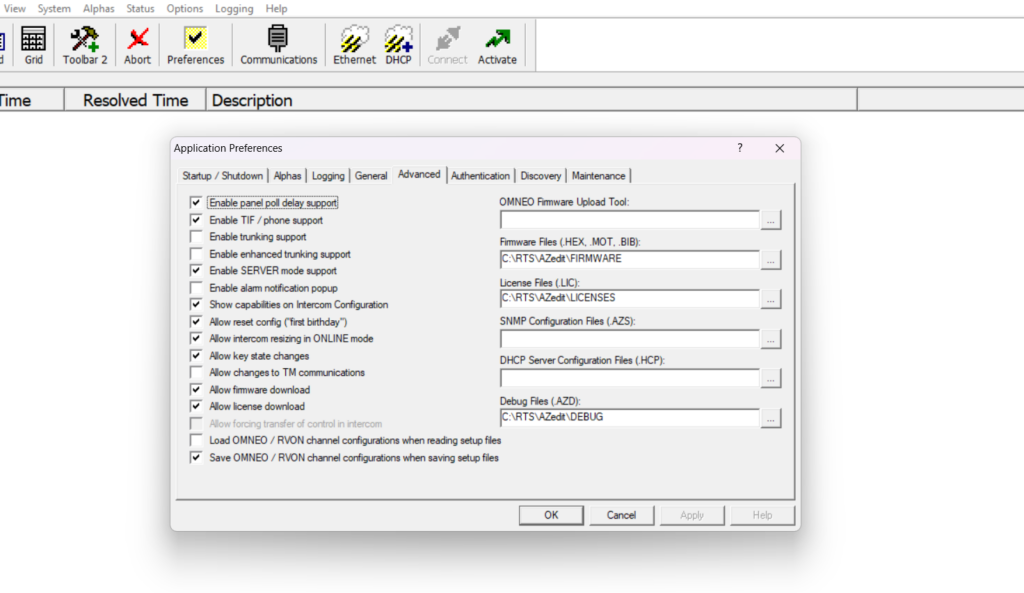
Click Apply, then ok and send the change to the intercom.
Access the intercom Sizing Wizard
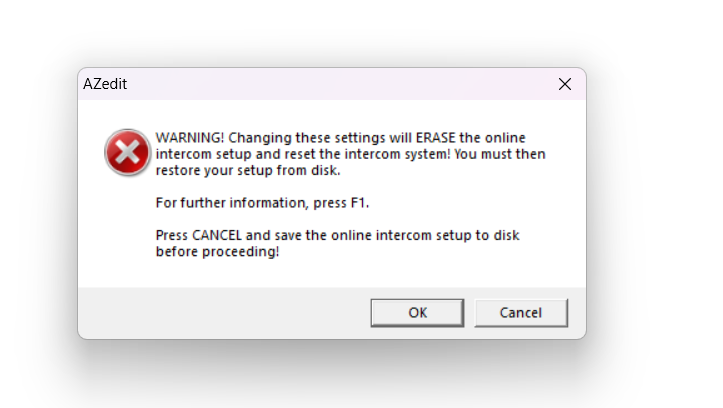
Navigate to Options > Intercom Configuration. A prompt will appear recommending that you save the current file.
Complete the re-sizing process
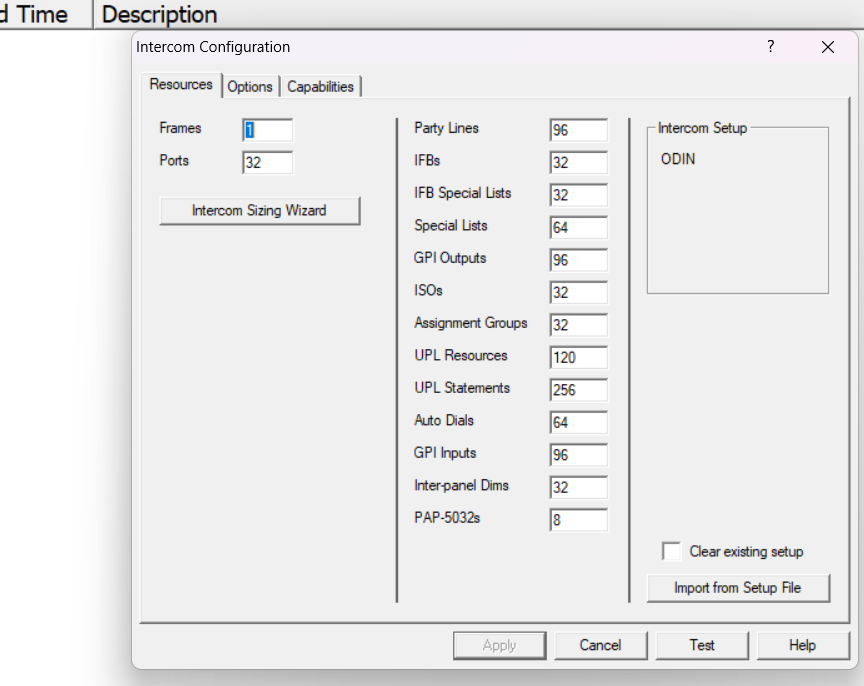
Follow the prompts, entering the number of frames and the number of ports in the intercom.
Click on finish.
Restore Configuration
The intercom will reset and reboot.
Once the system restarts, merge the previously saved configuration file with the newly
sized intercom.
Leave a Reply
You must be logged in to post a comment.