

Overview
When party lines include audio sources other than RTS keypanels, background noise
may be present on the keypanels because the audio is continuously active.
This background noise can be mitigated by enabling VOX (Voice‑Operated Exchange)
on the associated ports and leveraging a keypanel auto‑talk function.
This document outlines the recommended configuration steps within AZedit to reduce or
eliminate background noise on RTS party lines.
Enabling VOX on Keypanel Ports
- Open AZedit and navigate to System → Keypanel Assignment, or press F2, or click
the Keypanel Assignment icon. - In the Keypanel/Port Settings area, select the port that will participate in the party
line and click Edit. - In the configuration window, select the VOX tab.
- Enable VOX by checking the Enable VOX box.
- Adjust the Threshold and Hold Time as needed.
- Click Done to save.
- On Talk Key 1, assign the appropriate party line (PL).
- Repeat this configuration for each port that will be part of the party line
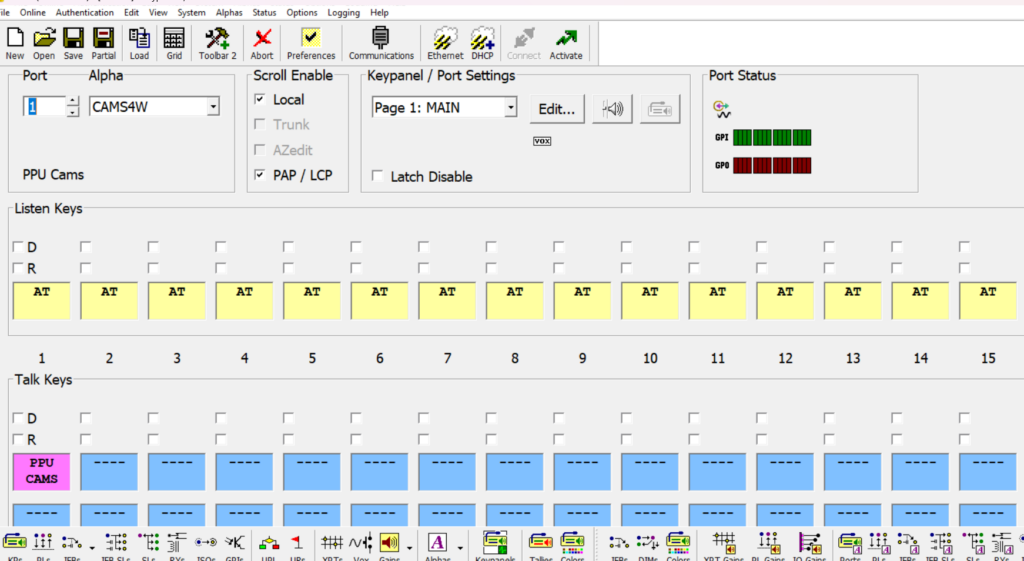
Configuring the Party Line
- Navigate to the Party Line Setup page (System → Party Line, or press F3, or click
the PLs icon). - Select the target party line by PL Number or Alpha Name.
- Locate each port previously configured for VOX.
- For each port: set as PL Listener and do not enable PL Talker.
- Ensure Party Line Tallies is enabled
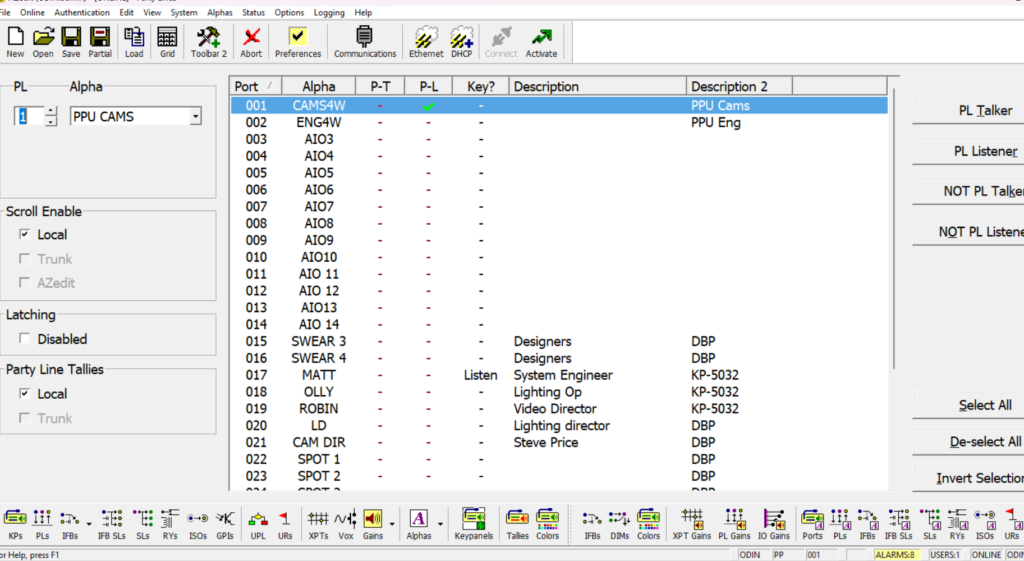
Result and System Behavior
With VOX enabled and auto‑talk active, Talk Key 1 automatically engages when the
port’s audio level exceeds the VOX threshold.
Party line audio is only heard when a meaningful signal is present, reducing or
eliminating background noise