

The Golf scoreboard NUC’s have a dedicated image for the Slim 11i7 generation machines. The NUC has a couple of software packages installed to facilitate the smooth installation onsite. The prep process only requires the TeamViewer steps to be completed.
NB: NUC image on FOG is named: NUC 11i7slim Scoreboard Nov 2024
Display Manager
The Display Manager is custom software built by CT London’s development team to work along side the Mercury software that generates the graphical leaderboards onsite. The main purpose of this tool is to launch one or more webviews automatically when the computer starts up, these webviews are dedicated display outputs from the Mercury software. The tool also has the ability to set the screen resolution, refresh rate & orinentation based on options choosen in the Mercury software. For monitoring purposes periodic screenshots are also submitted to the Mercury software.
- Open the management window by double clicking the CT Icon in the system tray or by pressing WIN+Shift+D.
- Click Add New is no display is currently configured.
- Edit the friendly name such as Hole 12 2×2
- Edit the configuration url to the dedicated url for this display found in the Display page within the Mercury software.
NB: ensure that the url ends with ?additionaldetails=true if not please add this. - Specifiy the output number to be the Windows screen number you would like to display the content on. Click Save and Launch when ready.
- Rebooting the machine will automatically load the desired display settings as setout in the configuration link.

TeamViewer
TeamViewer is commercially available remote control software, CT have a corporate license for onsite support and configuration purposes. The purpose of using TeamViewer is allow remote connection and access to the NUC once installed onsite regardless of the network (as long as internet is available on the choosen network).
“For advanced configurations or mass deployments requiring remote connectivity, please contact Stuart Turbefield or Joe Hicks for further details.”
After imaging the NUC from FOG the TeamViewer software will need to be launched and assigned to the “GoldSupport” device group. A TeamViewer host install is in the downloads folder of the NUC image or can be downloaded via this link (https://get.teamviewer.com/6bgrpfw). Once the host file is installed, a pop-up confirming it will be assigned to the CT account, if this does not pop up after the installation process close and restart the TeamViewer host.
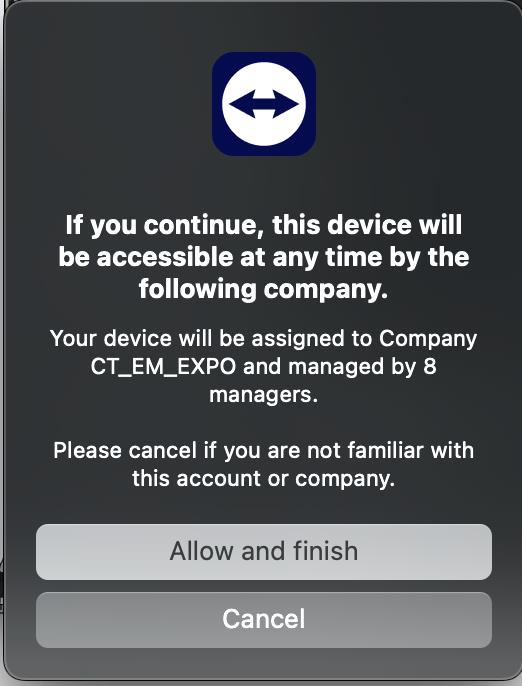
Accessing Device
- NOTE: If the device has not previously been used with CT’s TeamViewer account, a device verification email will be sent to authorise it. Before proceeding, please visit the following webpage to add your email address as a recipient for these emails: https://onsite.ctlondon.com/TeamViewer. You will receive these emails for 24 hours; if you need to receive them for longer, you will need to re-register each day.
- Open the TeamViewer Console, this can be done from the desktop, start menu & system tray.
- At the top left click “sign in” login with the following credentials.
- Email: tv-device@mg.ct-networks.com
- Password: Creat1ve
- Check “keep me signed in”
- The tv-device@mg.ct-networks.com email address is a special email account that forwards to anyone on a pre-determined address list. Ensure you have been added to this address list as defined in the first step.
- Go back to TeamViewer and retry the sign in process.
- Click the cog / settings button
- Open the “General” tab (default)
- Scroll to “Account Assignment” Click the “Assign to account” button, either enter the same email and password you used to sign in with or this may already be filled in.
- Click Assign
- Scroll to “Manage this device” Click the “Manage this device” button
- Close the settings window and navigate to the “Computers and Contacts” page.
- Find the computer that is labelled like “xxxxx (this computer)”, right click and open the properties panel.
- Edit the Alias to GolfLeaderboard-123 where 123 will be replaced with the barcode number of the NUC.


Leave a Reply
You must be logged in to post a comment.