

How to add the wildcard “*” automatically into the search fields….
Where You Can Filter.
You can create filters in Easyjob on the following pages:
Projects:

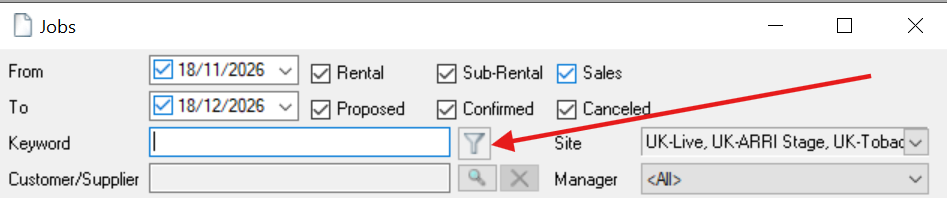
Jobs:
Items:

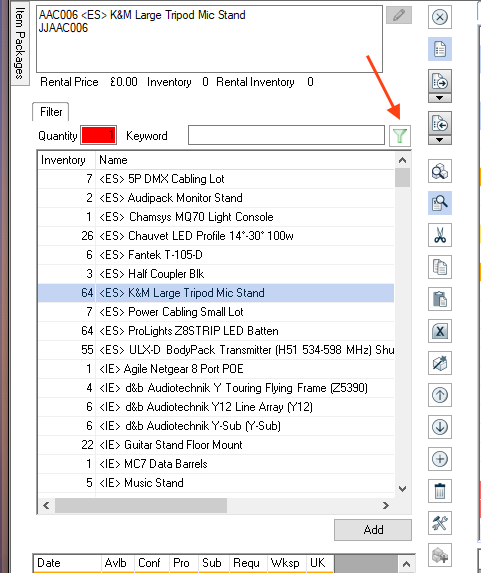
Job Items:
How to wildcard filter on Project search
For projects set the filter by opening the project window; View -> Projects, then select the filter dialogue.

To Make your searches automatically have the wildcard character “*” for the search:
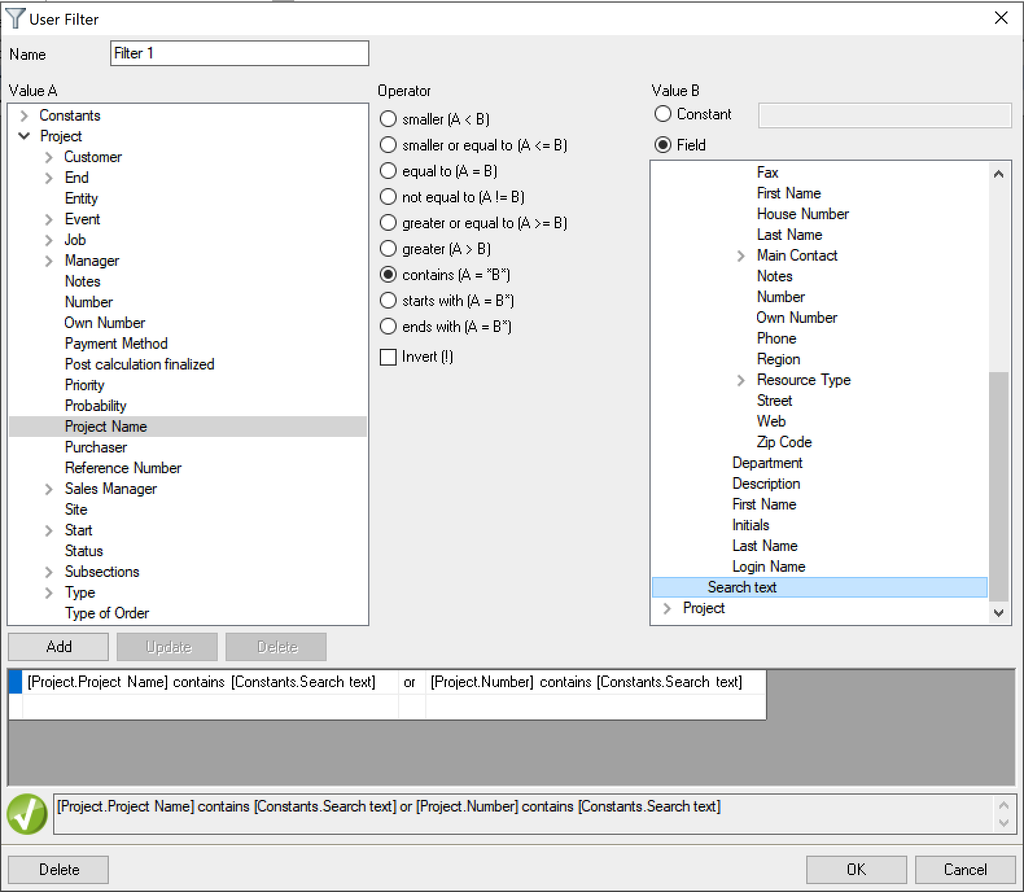
In the filter creation window; select:
Value A: Project Name
Operator: contains (A=*B*)
Value B: search text
Then Add
Now to do the same with Project Numbers:
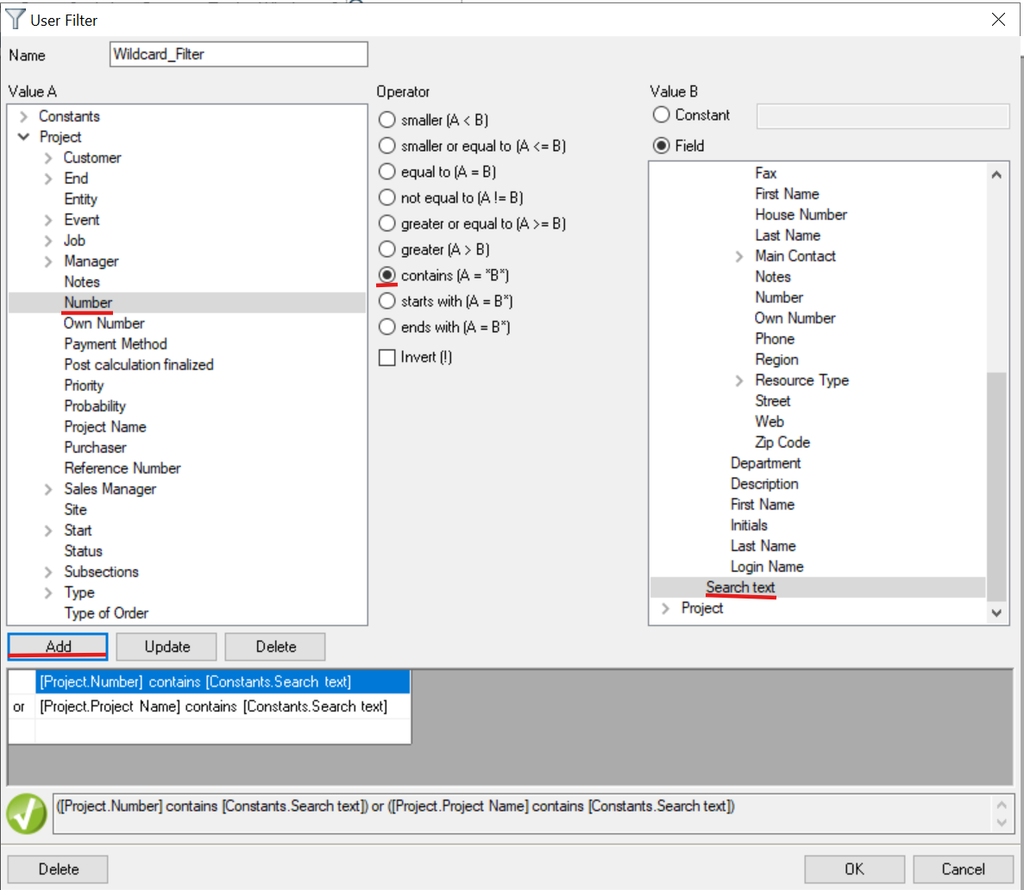
In the filter creation window; select:
Value A: Number
Operator: contains (A=*B*)
Value B: search text
Then Add
Explanation: This means whatever you search is within a contains operator – which is the same as *searchterm*.
How to wildcard filter on Job search
For Jobs, set the filter by opening the job selection window: View -> Jobs, then select the filter dialogue.
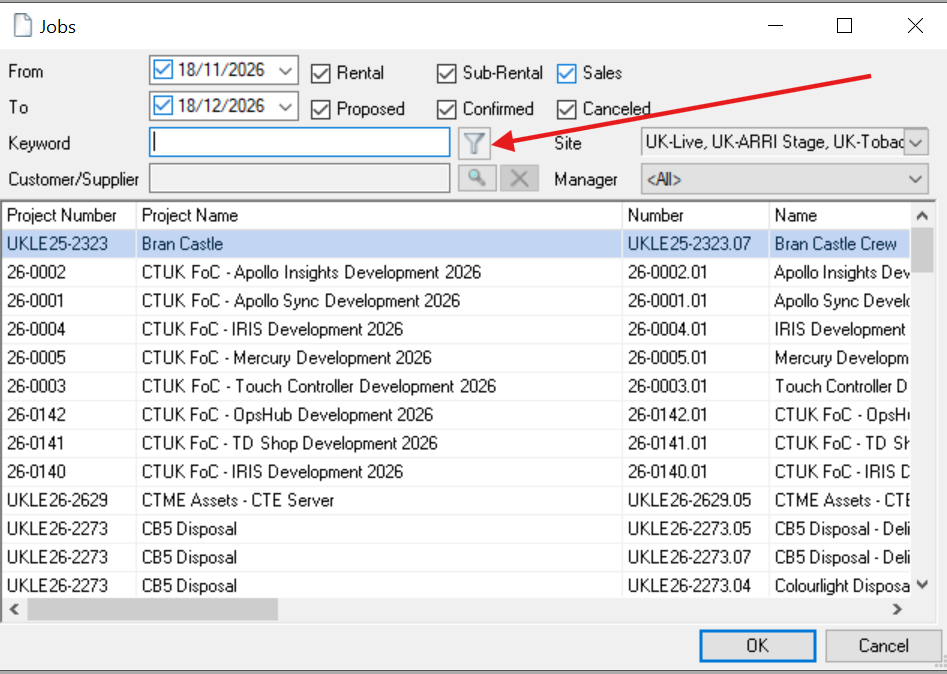
To Make your searches automatically have the wildcard character “*” for the search:
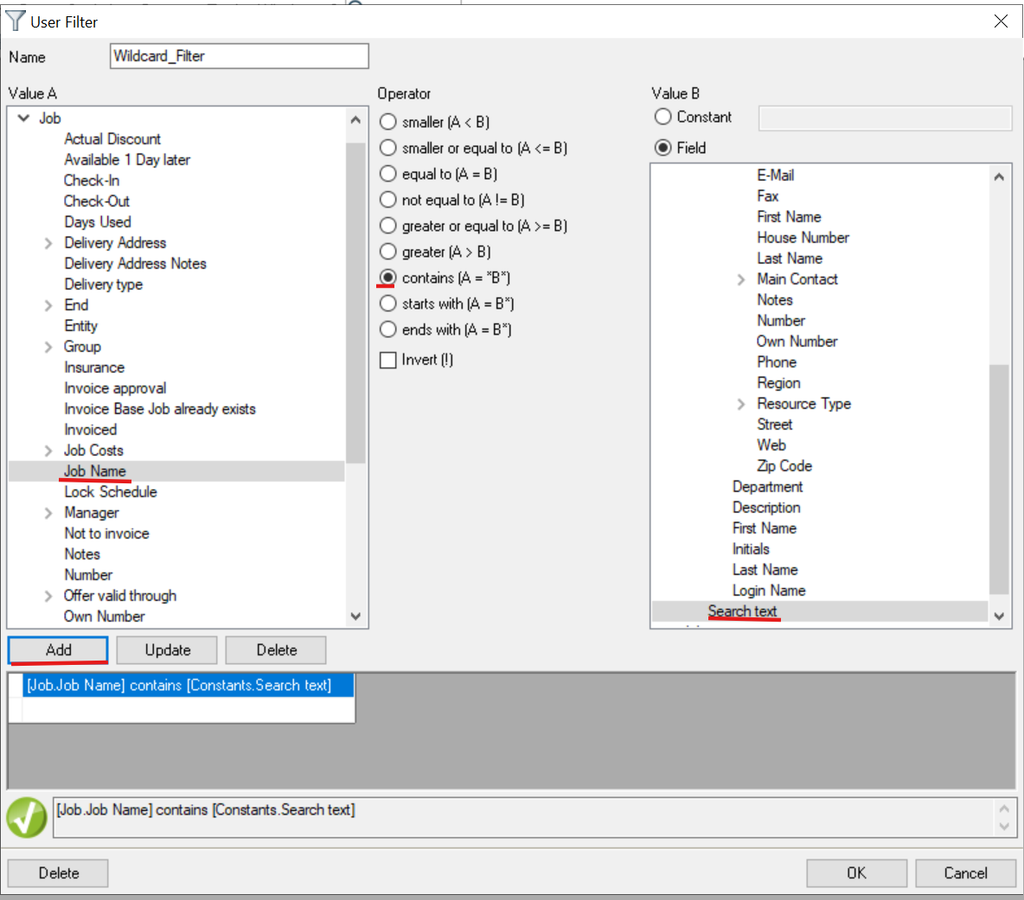
In the filter creation window; select:
Value A: Job Name
Operator: contains (A=*B*)
Value B: search text
Then Add
Now to do the same with Job Numbers:
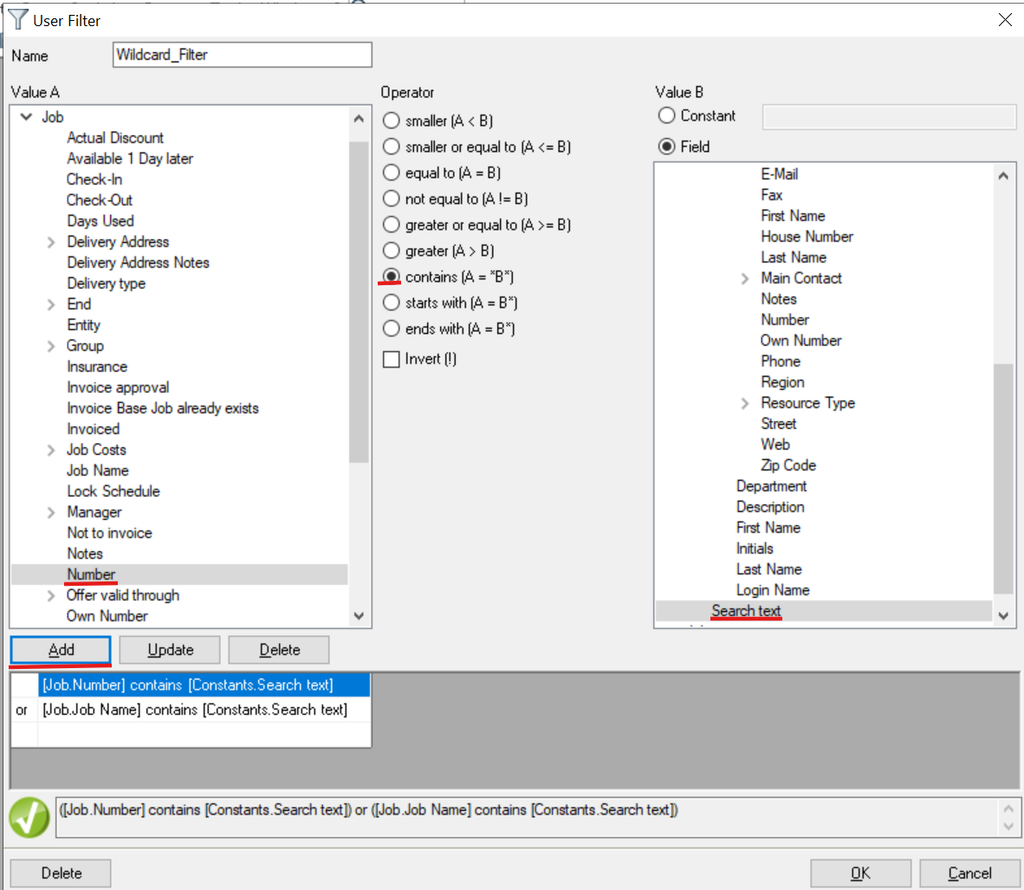
In the filter creation window; select:
Value A: Number
Operator: contains (A=*B*)
Value B: search text
Then Add
Then OK
How to wildcard filter on Item search
For Jobs, set the filter by opening the job selection window: View -> Jobs, then select the filter dialogue.
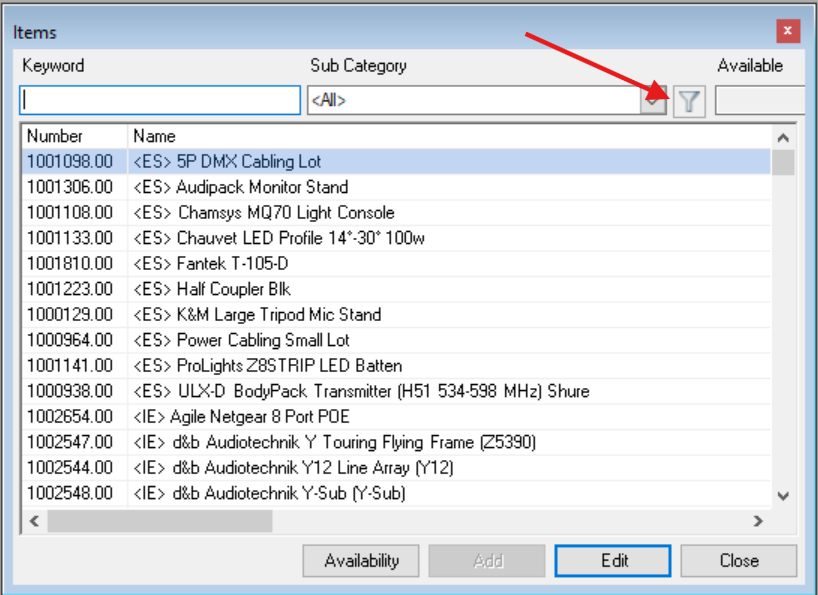
To Make your searches automatically have the wildcard character “*” for the search:
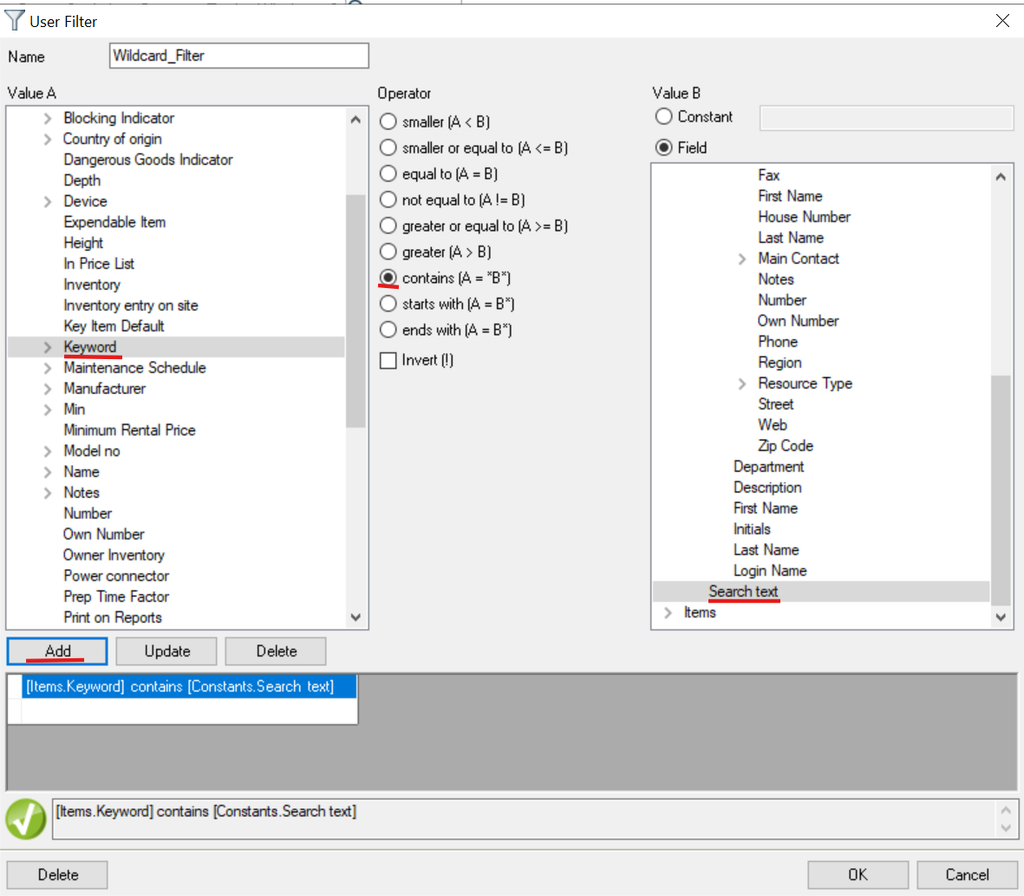
In the filter creation window; select:
Value A: Keyword
Operator: contains (A=*B*)
Value B: search text
Then Add
Then OK
Now to do the same with Item Barcodes:
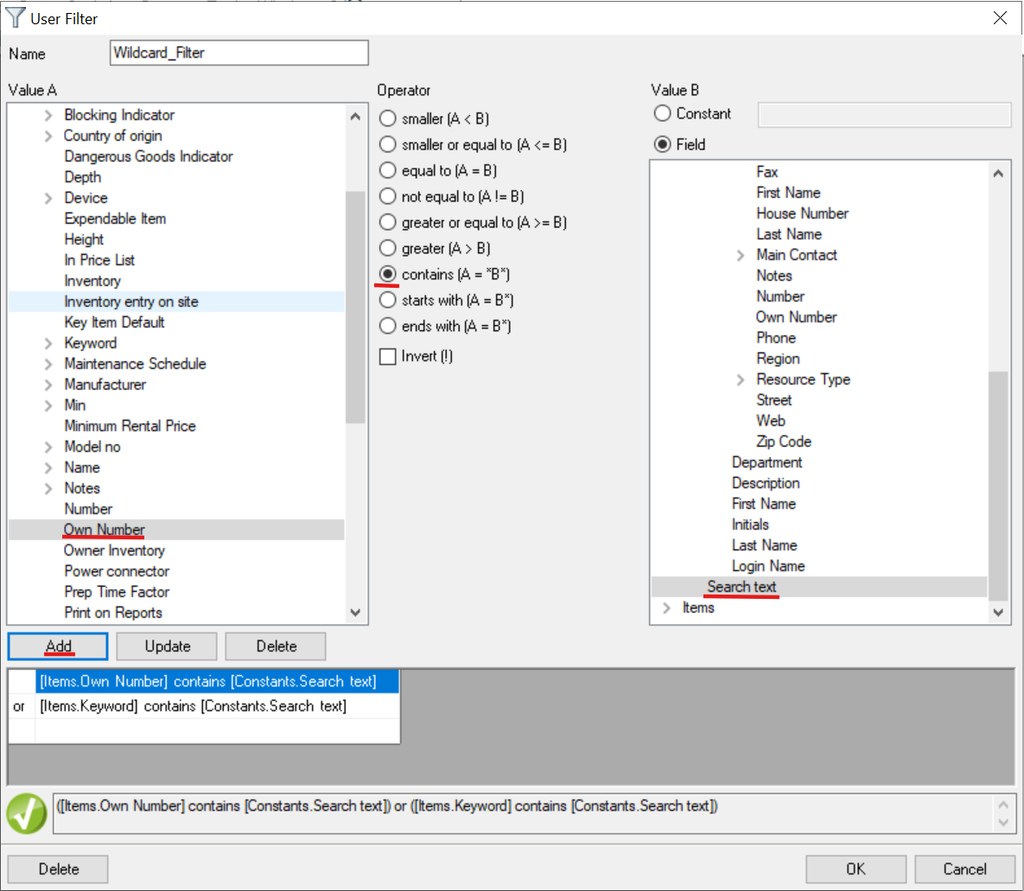
In the filter creation window; select:
Value A: Own Number
Operator: contains (A=*B*)
Value B: search text
Then Add
Then OK
How to wildcard filter on items within the job.
For Jobs, set the filter by opening the job selection window: View -> Jobs, then open your job, and go the items tab, then select the filter dialogue.
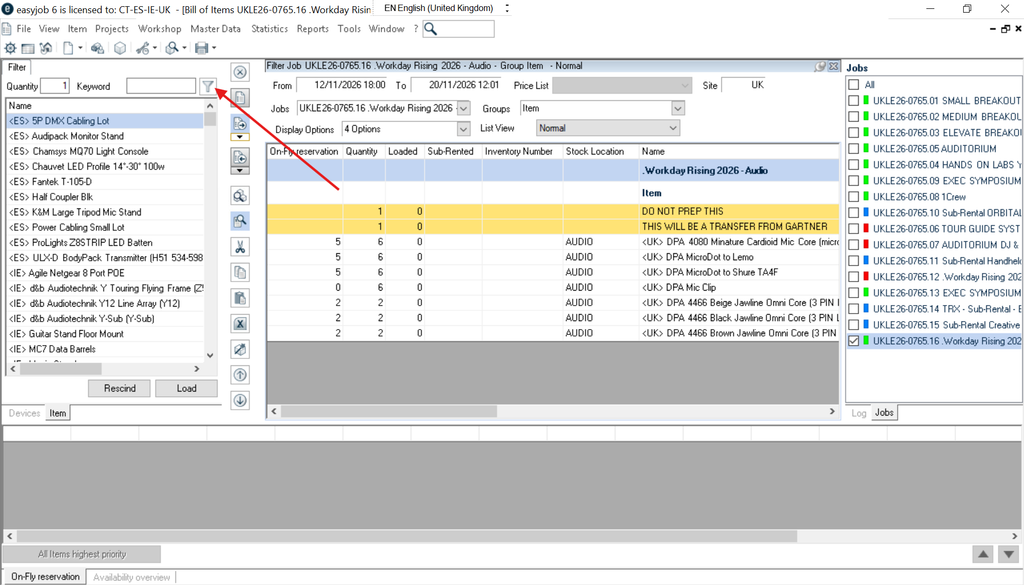
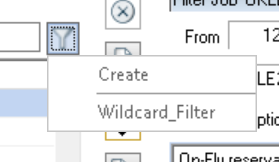
To Make your searches automatically have the wildcard character “*” for the search:
In the filter creation window; select:
Value A: Keyword
Operator: contains (A=*B*)
Value B: search text
Then Add
Then OK
Now to do the same with Item Barcodes:
In the filter creation window; select:
Value A: Own Number
Operator: contains (A=*B*)
Value B: search text
Then Add
Then OK
Tips:

If the filter is enabled, the filter icon goes a different colour.
Leave a Reply
You must be logged in to post a comment.