

Notes from a test of the single Encore 3 unit and some information is pulled from manual for reference.
Version
Event Master Toolset 10 – Software version: 10.0.2 (Build 2839)
Encore3 Firmware: 10.0.2.4240
Encore3 Operating System: 0.0.25
Encore 3 User Guide
Unit Specifications
Height: 175.5 mm (6.9 in) – 4 RU rackmount (Ensure at least 1,27cm (1/2 inch) of clearance between Encore3 and other devices in the rack.)
Width: 431.8 mm (17.0 in) without chassis handles, 485.3 mm (19.1 in)
with chassis handles attached
Depth: 590.54 mm (23.3 in) from front panel to rear panel without handles
or connector protectors, 672.29 mm (26.5 in) overall
Unit with cards: 29 kg
Power Consumption: dual redundant, hot swappable power supplies
Start: 0.60A @240V, Running: 1.01A @240V, 1.82A on a single PSU
Airflow – air-cooled – front to back
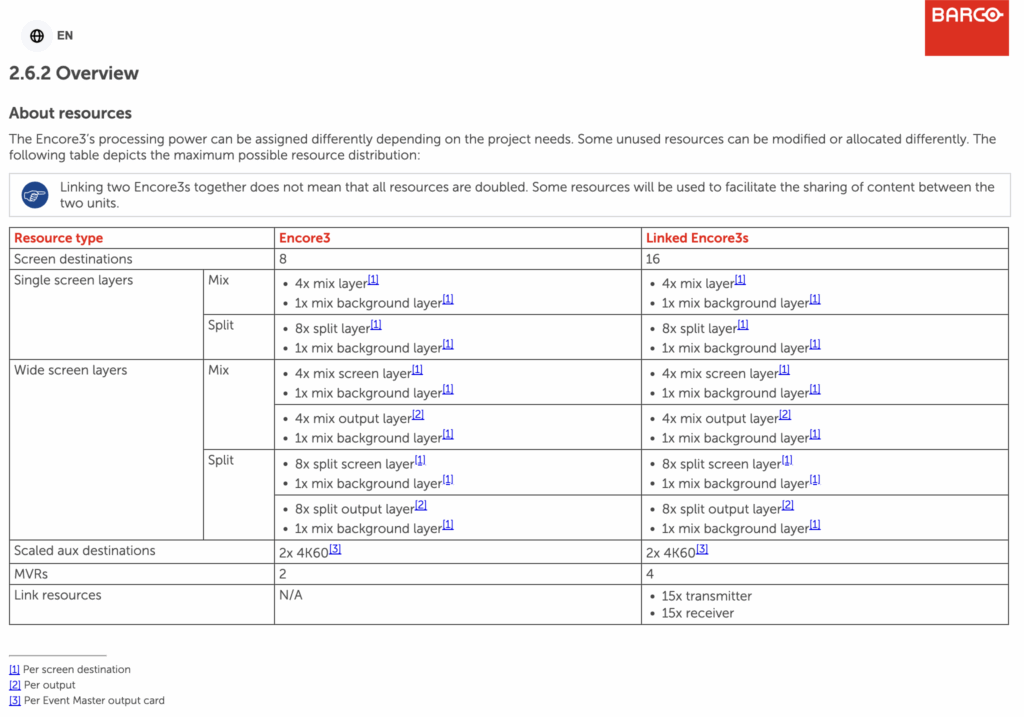
Canvas and Resources
- Max canvas size per unit – 8x 4K60 PGM outputs
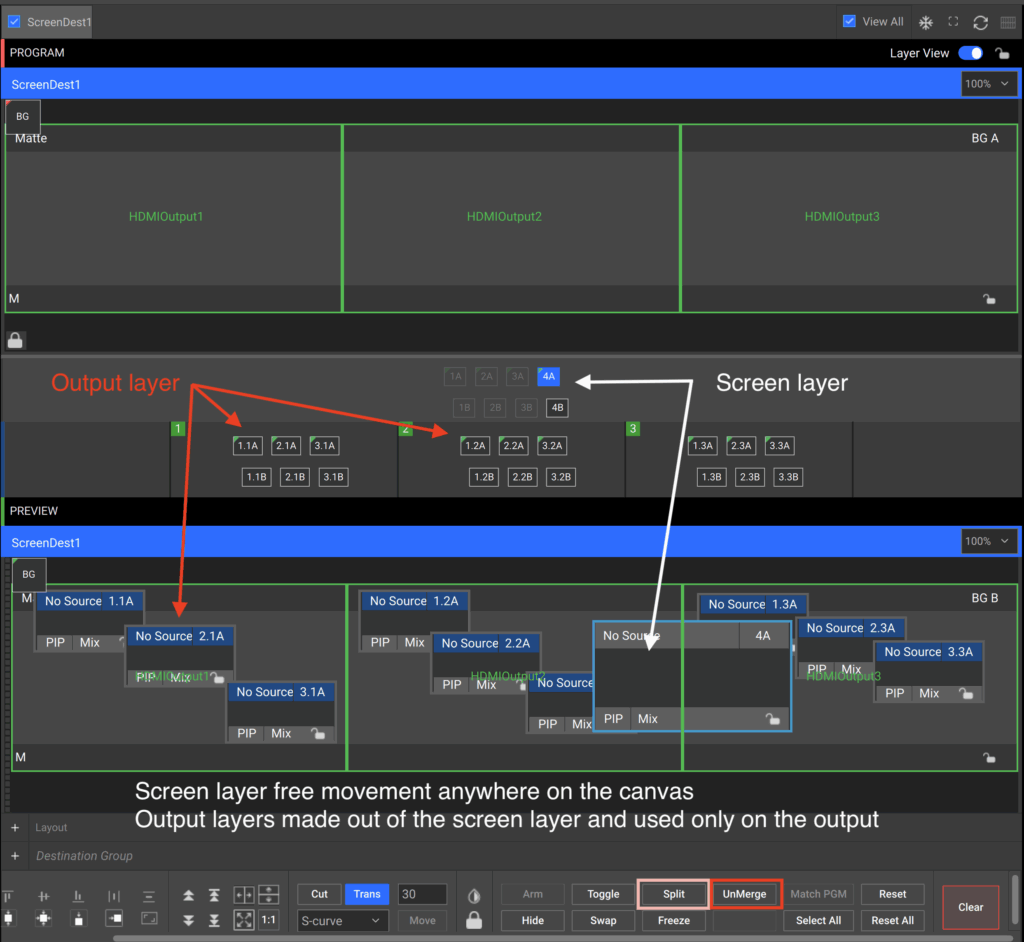
- Each destination has a Mixed BKG and 4x Mix layers, meaning, any unassigned screen destinations can be used to increase the amount of mix layers. Each mix layer can be separated into two split layers. It is also possible to merge two split layers back into a mix layer.
- Widescreen destination has assigned 4x Mix Screen layers by default,
- These 4 Screen layers can be placed anywhere on the canvas
- When this free movement is not needed, then any screen layer can be turned into output layers for each output or output group. When the free movement is needed again, then the output layers of each output or output group can be merged back into a screen layer.
- Switching between screen and output layers can be done at any time and as often as needed.
Inputs / Outputs/Stills
- E2 Gen2 cards supported
- If cards are cross used between E2 or Encore 3, they auto update when the unit starts, please note in such case boot takes longer
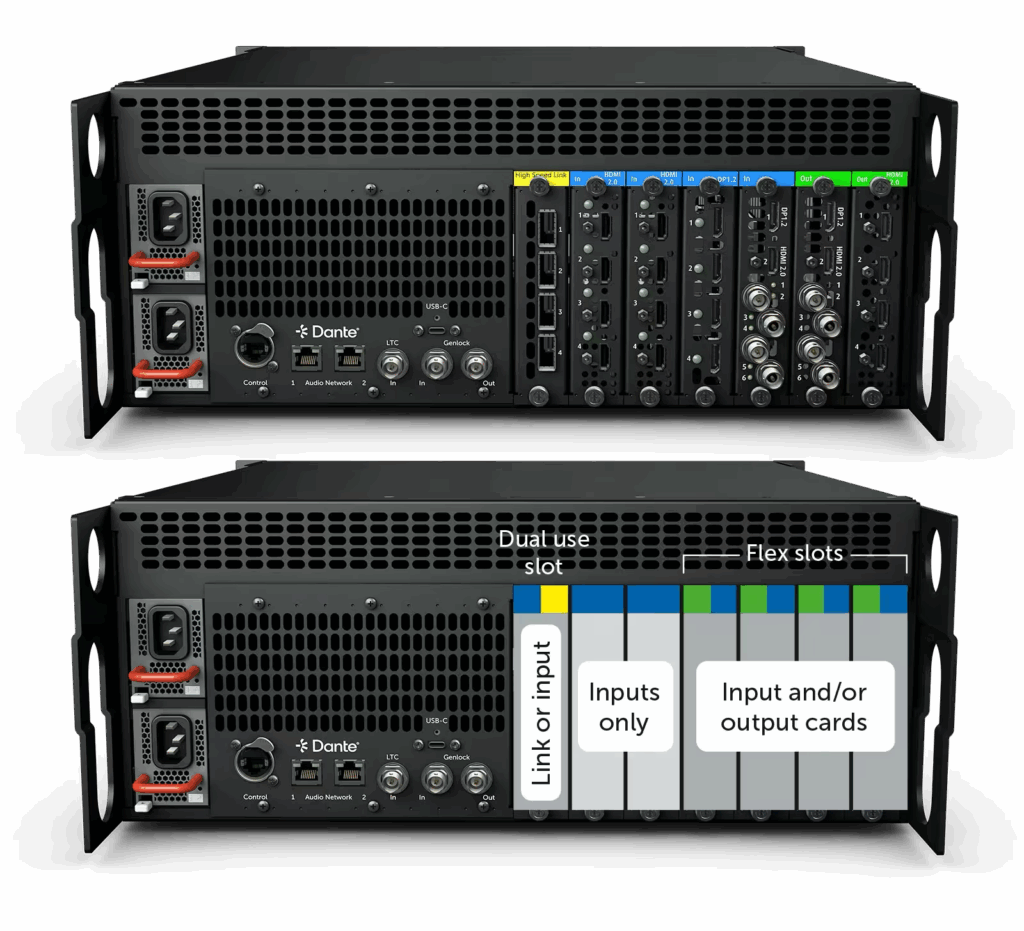
- Only 2 slots are dedicated to input cards only, the rest are flexible slots, link card can be swapped for input card and there are 4x flexible slots for either input or output cards, see picture below.
- TCI Mode:
- Tri-combo input cards have six possible connectors. Due to limited card resources, only four of these input connectors can be active at a time. It is possible to select which group of connectors are active, by using TCI mode.
- The disabled connectors will not lose their configuration in the software. Any signal that is sent to them will not be processed. T o reactivate the connector, change the TCI mode and the same configuration will be active again
- Each TCI card can have its own mode independent of the other cards.
- TCI mode has three different options:
- Top 4, disables the bottom two connectors.
- Middle 4, disables the top and bottom connectors.
- Bottom 4, disables the top two connectors.
- Input connectors that receive a signal will automatically create a single input in the software.
- This single input will adopt the configuration of the incoming signal. If the signal does not transmit a configuration or if a wrong signal is connected to the connector, then the input signal can be corrupted or look differently than expected.
- To prevent these issues, a connector can be configured to only accept a predefined signal.
- Thumbnails can only be viewed in All Source tab
- Tri-combo (gen 2) input card allows up to four independent signals to be active – By default the top four connectors are active. – there is a selection mode, Top 4, Middle 4 or Bottom 4 – this is called TCI MODE ( The disabled connectors will not lose their configuration in the software. Any signal that is sent to them will not be processed. T o reactivate the connector, change the TCI mode and the same configuration will be active again.)
- Stills – must be ‘.png’ format, store up to 2160MB (~60 4K60)
- EMT can capture a frame directly from an input and store it as a still
Background
- Any input can be background
- Background layer can move within the canvas
- Each screen destination comes with a mix background layer that spans the entire output or widescreen
- It is not possible to split the mix background layer.
Destinations
- eight 4K60 PVW/PGM outputs configurable in any way you want for single wide screen or independent screens, and always available eight fully capable 4K layers per screen destination.
- 10bit – by default unit outputs are configured as CEA standard with support of 8bit only, changing the output configuration to a VESA standard offers YUV/4:2:2/12bit on HDMI and RGB/YUV/4:4:4/10 bit on DP connectors, all tested and working
Aux
- 2x 4K @60p MultiViewer as source that can be sent to any output or layer
- Aux Destinations are not visible on the MVW
Other Notes
- PGM only mode like in E2 isn’t a thing anymore
- System resources don’t increase if you run the unit at 25/30Hz
- 400G Expansion Linking card with QSFP28 100G connectors – at the moment its use linking with another Encore 3 frame, in the future it we could see a “Media card” to interface via ST2110 or IPMX protocols but no information when this might become available
- UI changes – you can pop out side tabs into the central section of UI on configuration and programming page
- Showfile Editor – while loading the backup file you can choose what elements would you like to be imported, for example: Presets and Custom formats, EDID files, User Keys
- Genlock syncs the first frame of each output and locks the frames to the same clock speed. This ensures that all signals are updated together.
- A valid genlock out signal is always actively being sent on the out port, regardless of connections.
- Event Master Toolset can run a maximum of two windows at the same time
- MVR are automatically created by the unit, these MVRs cannot be deleted but the outputs can be re-assigned and you can have MVR on any type of output
- MVR can then also be used as a source in the programming page
- Multiviewer PIPs max size 1920×1080
Programming
- Preset Folders – presets can be saved into different folders, you can search for presets by name or number
- Layer configuration – Layer Opacity added
- Key and fill @4K resolutions works
- Keyframing – UI changes and better visibility
- Screen layer bar is only visible when three or less destinations are being viewed in the central work area.
- Z-order cannot be used for split layers nor output layers. These layers will always be arranged according to their layer number. If a layer must be behind or in front of another layer, then they must be assigned to another layer.
- Organising lists – Some lists can have a large amount of entries, making it difficult to get an overview and time consuming to find what is needed. For this reason the following lists can be organised:
- Sources (list can only be organized in subfolders)
- Presets
- User keys
- Each list follows the same general procedures to organise, the following procedure is written for source organisation, but is applicable for each type.
- A maximum of four custom folders can be displayed at a time. Additional folders will be under the Customize folder… option of the folder menu
Known Limitations
- Dante and LTC currently not working
- Can’t put still image in the AUX
- No rotation on the TCI/O
- No Aux Destinations on the MV
- EC-200 and EC-210 is not supported in this version of software.
- One link assignment, in each direction, is presently reserved for system synchronisation, leaving 15 of the link assignments, in each direction, available to share video sources.
- On a linked system, inputs and screens created at 4096×2160 @59.94 & @60 will not be available to use as a source over the link cables.
- In a linked system, group inputs whose configuration consists of all inputs into the same unit and used in a destination(s) across the links may exhibit tearing between the input seams.
- In a linked system, a group input whose configuration consists of one or more inputs in each unit, for use in the BG of a screen destination that is configured across the units, may exhibit tearing between the input seams. For this scenario, it is recommended to click the Link Resources view and click the Input tab, then uncheck the box to the right of the group input’s name. This will prevent the group input from routing over the links and only show the local portion of the group in each unit’s area of responsibility for the spanned screen destination.
- Chroma keyed content in layers 4B, 8B, 12B and 16B may have shadows in the source image suppressed (not shown on the output).
- MVR windows show artifacts and occasionally freeze when Tri-Combo output cards are arranged in these two configurations: TCO in Slot #7, preceded by an input card in Slot #6; TCO in Slot #5, preceded by an input card in slot #4.
Points waiting clarification
- Scaled Aux Capacity configuration – mentioned in the manual but not found in the software, at the moment not able to route widescreen destination to an AUX if larger than 4K
- Chrome keying – chrome mode not found in the menu
Leave a Reply