

User Manual – From LINDY Website
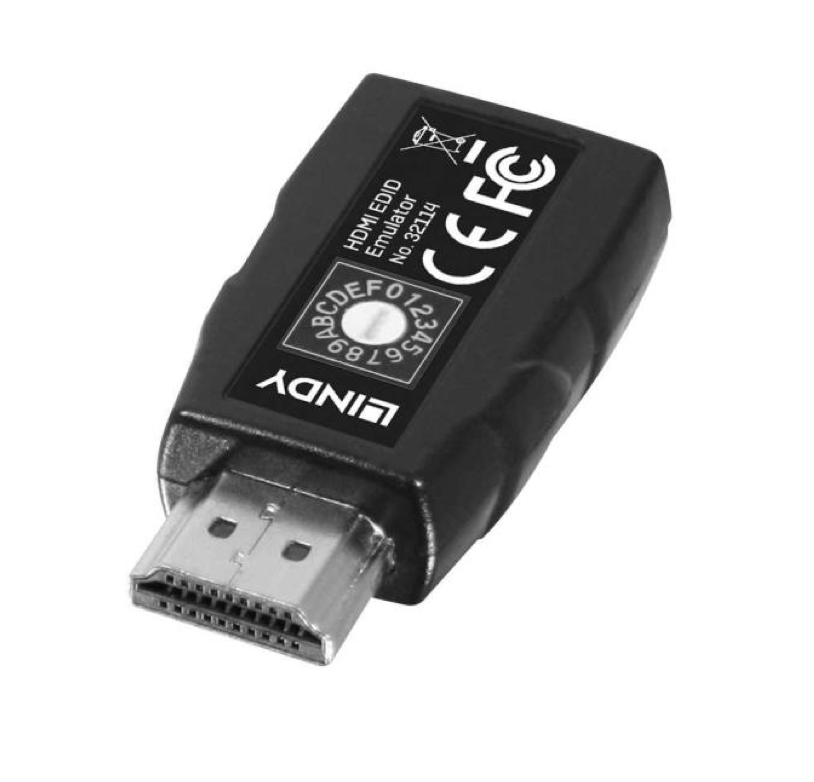
Specification
- Supports EDID learning or Preset Emulation
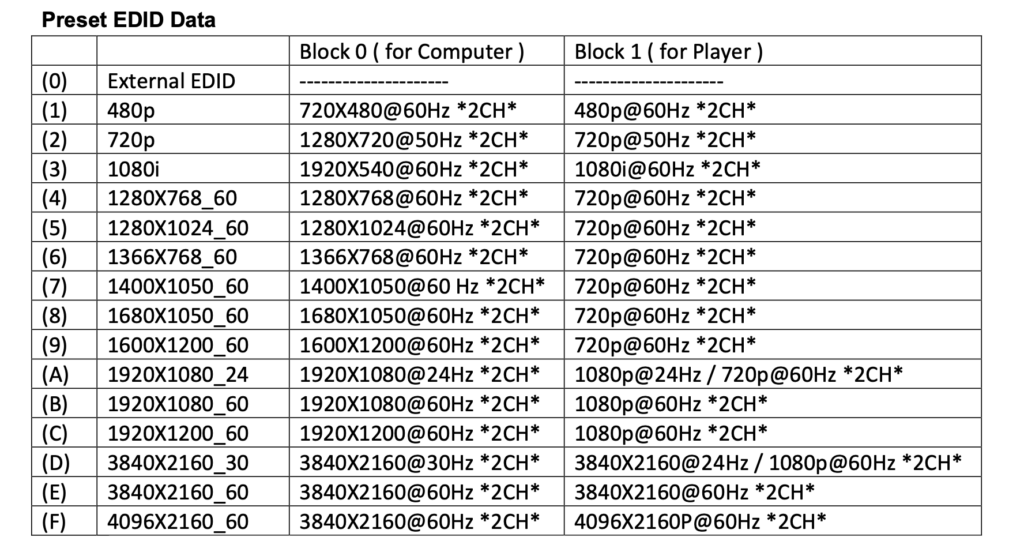
- 15 Pre-set EDID modes with blocks for AV and PC applications
- Compatible with HDMI 2.0 Resolutions up to 4K 60Hz 4:4:4 8bit
- Capable of supporting HDCP 2.2, 3D
- Powered via HDMI source interface
Installation and Use
The EDID Emulator Adapter contains preset EDID information for many commonly used resolutions and refresh rates, please refer to the table on the following page. To use the preset data select the correct rotary dial position then skip to Step 8 of the Cloning Procedure.
Cloning Procedure
- In order to use your own EDID please turn the rotary dial on the unit to setting “0”
- Connect a standard HDMI cable to the HDMI Input port of the display which you want to clone – but do not connect it to the Emulator!
- Insert the male HDMI connector of the Emulator into the HDMI Output port of your source device, the Status LED will flash red for 5 seconds.
- Whilst the Status LED is flashing red connect the other end of the HDMI cable from step two, the Status LED will momentarily turn purple as is reads the EDID of the display.
- When the Status LED switches from purple to blue the EDID has been learnt and stored to the Emulator.
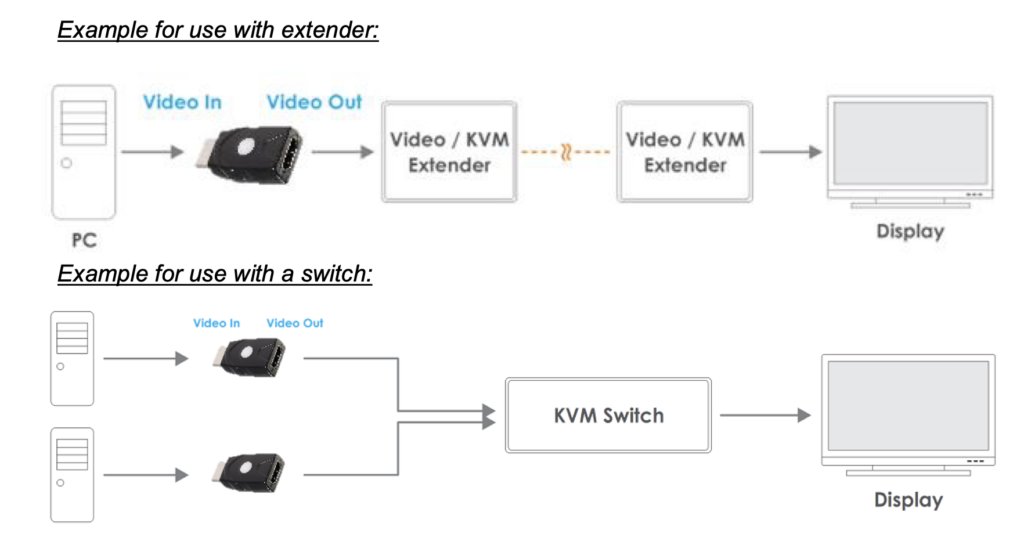
- The Emulator can then be disconnected from the source/HDMI cable and installed as required, please see the installation examples below for suggested positioning within an installation.
- It is recommended that all equipment is power cycled, before the Emulator is used, to reinitiate the HDMI handshake.
- When installing the Emulator attach one end of a HDMI cable to the display/extender/switch and then the other end to the Emulator. Finally connect the Emulator directly to the HDMI source device.
Troubleshooting
Windows shows a “Generic Non-PnP Monitor” is connected – Make sure that the Emulator is directly connected to the HDMI source by its male connector and that the Status LED is illuminated blue.
EDID Data is not cloned – Repeat steps 1-4, taking care to attach the HDMI cable from the monitor to the Emulator whilst it is flashing red.
Leave a Reply
You must be logged in to post a comment.